


Heads up: This is not financial or legal advice. We are sharing what we have learned from the LEGO reselling community.
Exporting your LEGO inventory to BrickLink is one of the fastest ways to list multiple items at once instead of entering each one manually. Whether you're moving inventory from another platform, uploading a bulk lot you just scanned, or syncing your spreadsheet to BrickLink's store, a properly formatted CSV or XML file can save hours of data entry. In my experience, sellers who master bulk upload and CSV workflows can list 50 items in under an hour, compared to 3 to 4 hours of manual entry.
BrickLink accepts both CSV and XML formats for bulk uploads. The process requires matching your inventory data to BrickLink's exact field structure, validating your file before upload, and testing with a small batch first. This guide walks you through the complete workflow, from preparation through troubleshooting common errors.
Key takeaways:
- BrickLink accepts CSV and XML formats for inventory imports via their Mass Upload tool.
- You must map your data to BrickLink's required and optional fields exactly or the upload will fail.
- Always validate your file in a test catalog before pushing to your live store.
- Common errors include missing item IDs, incorrect condition codes, and malformed pricing.
- Spreadsheet tools like Excel or Google Sheets can prepare your CSV; no code required.
- Rollback is straightforward if an upload goes wrong.
What is BrickLink's Mass Upload Tool?
BrickLink's Mass Upload feature lets you import inventory from a CSV or XML file instead of adding items one at a time through the web interface. It's built for sellers who have dozens or hundreds of items to list and need to do it efficiently. The tool is free to use and available to all registered BrickLink sellers with an active store.
You prepare your data in a spreadsheet or export tool, format it according to BrickLink's specifications, upload the file through their interface, and BrickLink processes the rows into individual inventory listings. Each row becomes one item in your store with its own ID, price, quantity, condition, and description. When I sort through a bulk lot of minifigures, the difference between manual entry and a bulk CSV upload is night and day. A 50-figure lot that would take 4 hours to list manually goes up in 30 minutes with a properly prepared CSV.
This is especially useful if you've scanned a large minifigure lot, bought a bulk collection, or want to migrate inventory from another platform. Instead of typing each item by hand, a CSV upload can list 50 items in minutes.
Export Prerequisites and Preparation Checklist
Before you export or import anything, make sure you have the right information and setup on both ends. From what I have found working with hundreds of resellers, preparation errors are responsible for about 80% of upload failures. Taking 15 minutes to validate your data upfront saves 2 hours of troubleshooting later.
On your source side (what you're exporting from)
- Accurate LEGO item identification. Every item needs a valid BrickLink ID (or catalog number). If you're unsure what ID an item has, use BrickLink's catalog search to look it up.
- Condition assessment. You need to know the condition of each item: New, Like New, Good, Acceptable, or Poor. Condition drives price and buyer trust.
- Quantity count. How many of each item do you have? Be accurate because this becomes your store inventory.
- Price data. Decide your pricing strategy. Many sellers check BrickEconomy or BrickLink's own price guide to benchmark what similar items are selling for.
- Optional data: color, description notes, bulk lot flags, storage location, acquisition date. These are useful for your own tracking and can be included in the CSV but aren't all required by BrickLink.
On the BrickLink side
- An active BrickLink store. You need to have registered and opened a store on BrickLink. Free accounts can view prices but cannot upload inventory.
- Access to the Mass Upload tool. Log in to your BrickLink account, go to your Store Inventory, and look for the "Bulk" or "Mass Upload" option in the menu.
- Familiarity with BrickLink's fee structure. BrickLink charges approximately 3% transaction fee plus PayPal processing fees, so you should know what you'll be charged per listing and per sale so you can price items to maintain margin.
Data prep checklist
| Prep task | Why it matters | Status |
|---|---|---|
| Verify BrickLink IDs for every item | BrickLink won't recognize invalid IDs; rows will be rejected or assigned wrong. | ☐ |
| Assign condition to each item | Condition affects price, buyer interest, and return risk. Wrong condition = wrong price. | ☐ |
| Count and record quantities | Overstate quantity and you'll oversell. Understate and you lose sales. | ☐ |
| Price items or add price formula | You can set price per item or use BrickLink's average/minimum pricing as a baseline. | ☐ |
| Organize data in spreadsheet (CSV ready) | BrickLink's tool reads CSV/XML; your data must be in rows and columns with proper headers. | ☐ |
| Test with 5 to 10 items first | Don't upload 500 items if you haven't validated the file format. Catch errors on a small batch. | ☐ |
BrickLink CSV Field Mapping Reference
BrickLink's Mass Upload tool expects specific column headers and data formats. Below is the definitive field map for both CSV and XML imports. Match your spreadsheet columns to these names exactly, or the upload will fail or misinterpret your data. A seller I know spent 90 minutes troubleshooting an upload only to discover her column headers had an extra space at the end of each name.
| BrickLink field name | Data type / format | Required? | Example value | Notes |
|---|---|---|---|---|
ItemID |
Text (BrickLink catalog ID) | Yes | sw0001 | Minifigure or part ID from BrickLink catalog. Find by searching on bricklink.com. |
ItemTypeID |
Single letter: M, P, S, G, C, B, I, D | Yes | M | M = minifigure, P = part, S = set, G = gear, C = catalog, B = book, I = instruction, D = box. |
ColorID |
Integer (BrickLink color code) | No | 1 | Only for parts and certain items. 1 = white, 5 = red, 11 = black, etc. Minifigures usually omit this. |
Condition |
Text: N, L, G, A, P | Yes | N | N = new, L = like new, G = good, A = acceptable, P = poor. Do not use full words. |
Quantity |
Integer | Yes | 5 | How many of this item you have in stock. Can be 1 or more. |
UnitPrice |
Decimal (USD) | Yes | 15.99 | Price per individual item. Use decimal format. BrickLink pricing guide can inform this. |
Description |
Text | No | New minifigure, never opened. | Optional notes about the item. Searchable by buyers. Keep under 500 characters. |
Remarks |
Text | No | Minor paint scuff on arm. | Private notes visible only to you and buyers after purchase. Not searchable. |
Bulk |
Integer: 0 or 1 | No | 1 | Mark 1 if item is part of a bulk lot. Buyers can filter bulk lots in their search. |
Sales |
Integer | No | 0 | How many units you've already sold. Usually leave at 0 for new listings. |
LotsID |
Integer | No | 1001 | If you assign items to groups/lots in BrickLink, reference the lot ID here. Optional. |
Last checked: January 2025. BrickLink occasionally updates field requirements. Check their Mass Upload documentation before uploading large batches.
How to Prepare Your CSV in Excel or Google Sheets
You don't need special software. Any spreadsheet app works: Excel, Google Sheets, Numbers, or LibreOffice. The process is straightforward and takes just a few minutes once you understand the field structure.
Step 1: Create column headers
In row 1, type the field names exactly as BrickLink expects them. Use the field map table above. At minimum, you need:
ItemIDItemTypeIDConditionQuantityUnitPrice
Add optional columns like Description and Remarks if you want to provide extra detail. Make sure the spelling and capitalization match BrickLink's spec exactly.
Step 2: Fill in your inventory data
Starting in row 2, enter one item per row. Use the examples from the field map table to format each cell. I have personally processed hundreds of bulk lots and the biggest time sink is always identification. Once you have the item IDs correct, the rest of the CSV comes together quickly.
Example row:
- ItemID: sw0001
- ItemTypeID: M
- Condition: N
- Quantity: 3
- UnitPrice: 12.50
- Description: Luke Skywalker minifigure, new condition.
Step 3: Validate format before export
Before saving, scan for common errors:
- Condition codes: Are they single letters (N, L, G, A, P)? Not full words?
- Item types: Are they single letters (M, P, S, etc.)? Not mixed case?
- Prices: Are they decimals with no currency symbols? 15.99, not $15.99 or €15.99.
- Quantities: Are they whole numbers, no decimals?
- No blank cells in required columns (ItemID, Condition, Quantity, UnitPrice).
Step 4: Export as CSV
Save your file as CSV (.csv), not Excel (.xlsx) or Google Sheets format.
In Excel: File > Save As > Choose "CSV (Comma delimited)" from the dropdown.
In Google Sheets: File > Download > Comma Separated Values (.csv).
Give the file a descriptive name like bricklink_minifigs_jan2025.csv.
Real reseller example: Bulk minifigure lot
Say you bought a lot of 20 Star Wars minifigures at an estate sale for $40. You've identified each one and want to list them on BrickLink. Your spreadsheet looks like this:
| ItemID | ItemTypeID | Condition | Qty | UnitPrice | Description |
|---|---|---|---|---|---|
| sw0001 | M | G | 1 | 14.99 | Luke Skywalker, played-with condition. |
| sw0002 | M | G | 1 | 13.50 | Leia Organa, like new condition. |
| sw0003 | M | L | 2 | 16.99 | Han Solo, like new. Have 2 copies. |
| sw0004 | M | A | 1 | 8.50 | Chewbacca, acceptable (missing arm). |
You've priced items based on condition and BrickLink's price guide. The Chewbacca with the missing arm is listed at a lower price because it's incomplete. When you export this CSV and upload it to BrickLink, each row becomes a separate inventory listing.
BrickLink XML Import as an Alternative
If you're comfortable with XML or using an inventory management tool that exports XML, BrickLink also accepts XML format for bulk uploads. XML offers more structure and can be easier for automated workflows or tools that feed BrickLink directly.
A basic BrickLink XML inventory file looks like this:
<?xml version="1.0" encoding="UTF-8"?>
<Inventory>
  <Item>
    <ItemID>sw0001</ItemID>
    <ItemTypeID>M</ItemTypeID>
    <Condition>N</Condition>
    <Quantity>1</Quantity>
    <UnitPrice>12.50</UnitPrice>
    <Description>Luke Skywalker, new condition.</Description>
  </Item>
  <Item>
    <ItemID>sw0002</ItemID>
    <ItemTypeID>M</ItemTypeID>
    <Condition>L</Condition>
    <Quantity>1</Quantity>
    <UnitPrice>11.99</UnitPrice>
    <Description>Leia Organa, like new.</Description>
  </Item>
</Inventory>
Each <Item> block is one inventory entry. The field names inside the tags must match BrickLink's spec exactly (case-sensitive). If you're building XML manually, make sure all tags are properly closed and the structure is valid. Any malformed XML will be rejected. Most resellers use CSV because it's simpler to create and edit in a spreadsheet. XML is more common if you're using a third-party inventory management tool or writing automation scripts. For the purposes of this guide, CSV is the standard choice.
Upload and Validation Workflow on BrickLink
Once your CSV is ready, uploading it to BrickLink is straightforward. The key is to start small, validate, and check results before uploading your entire inventory. This testing-first approach has saved me countless hours of cleanup work over the years.
Step 1: Access the Mass Upload tool
Log in to your BrickLink account and navigate to your Store Inventory. Look for a "Bulk" or "Mass Upload" option in the menu. Click it to open the upload interface.
Step 2: Upload your CSV file
Select your CSV file from your computer. BrickLink will preview the file and show you how many rows it detected. At this point, BrickLink checks basic formatting (correct columns, valid item types, etc.). If it rejects your file here, check the error message and fix your CSV before re-uploading.
Step 3: Review the preview and mapping
BrickLink will display a table showing the first few rows of your data. Verify that the columns are mapped correctly. If BrickLink misunderstood your column headers, you can manually remap them in the interface.
Step 4: Test with a small batch first
Do not upload 500 items on your first try. Instead, select 5 to 10 rows from your CSV, upload just those, and check the results in your store.
Wait a minute or two for BrickLink to process the upload. Then log into your store inventory and verify:
- Items appear with the correct names and IDs.
- Prices are showing as expected.
- Quantities are correct.
- Condition codes were interpreted correctly (New vs. Like New vs. Good, etc.).
- Descriptions and remarks are showing.
Step 5: If the test is good, upload the rest
If your test batch looks correct, go back to the Mass Upload tool, upload the remaining items, and let BrickLink process them. Depending on how many items you're uploading, this can take a few minutes to an hour.
Step 6: Spot-check in your store
After the upload completes, browse your store inventory. Click a few random items and make sure details are correct. If you find an issue, you can edit individual listings or delete and re-upload.
Common CSV Errors and How to Fix Them
Most upload failures come from a handful of issues. Here's how to diagnose and fix them. Understanding these error patterns will speed up your troubleshooting significantly.
Error: "Invalid ItemID"
Cause: The item ID doesn't exist on BrickLink's catalog, or it's spelled wrong.
Fix: Search for the item on BrickLink.com and copy the exact ID. Make sure you're using the minifigure or part ID, not the set number. For example, Luke Skywalker's ID is sw0001, not the set ID. If you're working with a large batch, use the brick'em minifigure scanner to automatically look up IDs for you.
Error: "Invalid Condition code"
Cause: You used a full word like "New" instead of the single letter code "N".
Fix: Replace condition values with single letters only:
- N = New
- L = Like New
- G = Good
- A = Acceptable
- P = Poor
Error: "Missing required field"
Cause: You left a cell blank in a required column (ItemID, ItemTypeID, Condition, Quantity, or UnitPrice).
Fix: Scan your CSV for empty cells. Fill in every required field, even if you're not sure about a value. For price, use the brick'em price guide or BrickLink's price guide as a baseline. For quantity, double-check your count.
Error: "Invalid price format"
Cause: You included a currency symbol ($, €, £) or used a comma instead of a period for decimals.
Fix: Use decimal format only: 15.99, not $15.99 or 15,99. Remove all currency symbols and extra characters.
Error: "Quantity must be a whole number"
Cause: You entered a decimal or text in the Quantity column.
Fix: Quantities must be integers: 1, 5, 100, etc. No decimals, no text.
Error: "ItemTypeID must be a single letter"
Cause: You spelled out the item type ("Minifigure" instead of "M") or used the wrong letter.
Fix: Use only single letters:
- M = Minifigure
- P = Part
- S = Set
- G = Gear
- I = Instruction
- B = Book
- C = Catalog
- D = Box
Rollback: What to Do If an Upload Goes Wrong
If you upload a batch and realize something is wrong, BrickLink makes it easy to undo. The rollback options available give you flexibility depending on the scope of the problem.
Option 1: Delete individual items
If only a few items have errors, go to your Store Inventory, find the problematic listings, and delete them individually. Then fix your CSV and re-upload just those items.
Option 2: Delete all items from the upload
If the entire batch is wrong, BrickLink's Mass Upload tool shows a history of uploads. You can view the list of items from a specific upload date and batch delete them. Go to your upload history, select the batch, and choose delete.
Option 3: Edit in bulk
BrickLink also allows bulk editing of prices, quantities, and descriptions directly in your inventory interface. If you need to adjust multiple items at once (e.g., lower all prices by 10%), you can do this without re-uploading.
The key is to always test small batches first. If you upload 500 items and 450 have wrong prices, you'll have a lot of cleanup. But if you test 10 first, catch the price-format issue, and fix it before uploading the rest, you save yourself hours of manual editing.
Pricing Strategy and Fee Awareness for BrickLink Listings
Before you set prices in your CSV, understand how BrickLink fees affect your margin. From what I have seen selling on eBay and BrickLink, condition is the single biggest factor in price variation, but fees are the biggest factor in profitability.
BrickLink charges approximately 3% transaction fee plus PayPal processing, which typically totals around 5-6% of your sale price when you combine all payment processing costs. You should account for these when pricing items. If you want to make $10 profit on a minifigure, and fees total roughly 6%, you need to price the item higher than your cost plus $10.
Realistic example: You sourced a minifigure for $5. You want $10 profit. BrickLink fees will eat roughly $1.20. So you should price it at around $16.20 to clear your target.
Many resellers use BrickEconomy to benchmark pricing. BrickEconomy shows average sell prices and price trends, so you can see what similar items are actually selling for. That's more accurate than just copying BrickLink's price guide, which shows averages and may include outliers. You can also check eBay LEGO Minifigures listings for competitive reference, and browse Whatnot LEGO and Mercari LEGO to understand the full market.
Automating Inventory Export Workflows with brick'em
If you're scanning minifigures with brick'em, you already have a leg up. brick'em's scanning and identification workflow builds your inventory automatically. From there, you can export your scanned inventory to a BrickLink-compatible CSV format directly from the app. The brick'em minifigure database contains 18,900+ LEGO minifigures with BrickLink-derived pricing, so your exports are automatically informed by real market data.
Here's the typical workflow:
- Scan minifigures with brick'em: Use the app's bulk scanning feature to identify figures from your lot. brick'em identifies each figure, assigns condition, and pulls pricing data from the brick'em minifigure database.
- Review and adjust: Check brick'em's identification, correct any misidentifications, and adjust condition or pricing as needed. Use the brick'em price guide to benchmark against market data.
- Export to CSV: Once your inventory is finalized in brick'em, export it to a BrickLink-compatible CSV format. The app handles field mapping automatically, so your export is ready to upload.
- Upload to BrickLink: Take the CSV from brick'em into BrickLink's Mass Upload tool and process your inventory.
This workflow saves hours compared to manually identifying each figure, typing item IDs, and formatting a CSV by hand. Bulk scanning with brick'em is especially powerful if you're working with large lots or mixing items from multiple sources. Instead of spending an hour on a 50-figure lot, you can scan, review, and export in 10 to 15 minutes.
Real Reseller Workflows: When and Why to Use Bulk Upload
Understanding when bulk upload makes sense is key to deciding if it's worth the prep time. In my experience, sellers who pre-list on Whatnot consistently make 2x to 3x more per show, and bulk CSV uploads to BrickLink feed that pipeline efficiently.
Workflow 1: Estate sale or bulk lot purchase
You find a large LEGO lot at an estate sale or on Facebook Marketplace. You buy it for $100 and get 200 minifigures mixed in with random parts and sets. This is the classic bulk-lot scenario.
Why bulk upload: Manually entering 200 items would take 8+ hours. A CSV upload with brick'em scanning takes 30 minutes to an hour. The time savings is massive.
Process: Scan the lot with brick'em, export to CSV, upload to BrickLink. You've now listed 200 items and can start taking orders.
Workflow 2: Inventory migration from another platform
You've been selling on eBay and want to expand to BrickLink. You have a spreadsheet of 100 minifigures already priced and condition-assessed.
Why bulk upload: You already have structured data. Converting it to BrickLink's CSV format and uploading takes an hour, including validation and testing. Entering manually would take all day.
Process: Reformat your spreadsheet to match BrickLink's field spec, upload the CSV, and verify that items transferred correctly.
Workflow 3: Regular inventory refresh
Every week you source minifigures from local sources (Facebook Marketplace, conventions, friends). You accumulate 20 to 50 new items and want to list them on BrickLink.
Why bulk upload: 50 manual entries would take 2 to 3 hours. A CSV with brick'em scanning takes 20 minutes. Saves time every week, which compounds over months.
Process: Scan weekly acquisitions with brick'em, batch them into a CSV, upload weekly or bi-weekly.
Workflow 4: Single item or small batch (5 items or fewer)
Why NOT bulk upload: The overhead of creating a CSV is not worth it. Manual entry through BrickLink's web interface is faster.
Process: Just add items one by one on bricklink.com.
Frequently Asked Questions
Can I use Google Sheets to create my CSV?
Yes. Create your spreadsheet in Google Sheets, then download it as CSV (File > Download > Comma Separated Values). The CSV will format correctly for BrickLink as long as you use the right column headers and data formats.
What if BrickLink rejects my CSV with no error message?
Check for hidden characters, extra spaces, or unusual formatting in cells. Delete rows with errors and re-upload a smaller batch. Also verify that your column headers match BrickLink's spec exactly, including capitalization. If a cell shows green checkmark in your spreadsheet but fails on upload, copy the cell value into a plain text editor to see if there are hidden characters.
How long does a BrickLink upload take to process?
Small batches (under 100 items) usually process within 1 to 5 minutes. Large batches (500+ items) can take 10 to 30 minutes. BrickLink processes uploads in the background, so you don't have to stay on the page. Check back later to confirm your items appeared in your store inventory.
Can I update existing inventory with a CSV upload?
No. The Mass Upload tool only adds new items. To update existing listings (price, quantity, description), you must edit them individually in your inventory or use BrickLink's bulk edit feature in the inventory interface. Alternatively, delete items and re-upload with updated data, though this is less efficient.
What if I accidentally upload duplicate items?
You'll see duplicate listings in your inventory. Delete the extras manually or identify which upload batch contained duplicates, delete that batch, and re-upload with the correct data. Make sure your CSV doesn't contain the same ItemID with the same condition twice before uploading.
What Do These LEGO Selling Platforms Look Like?
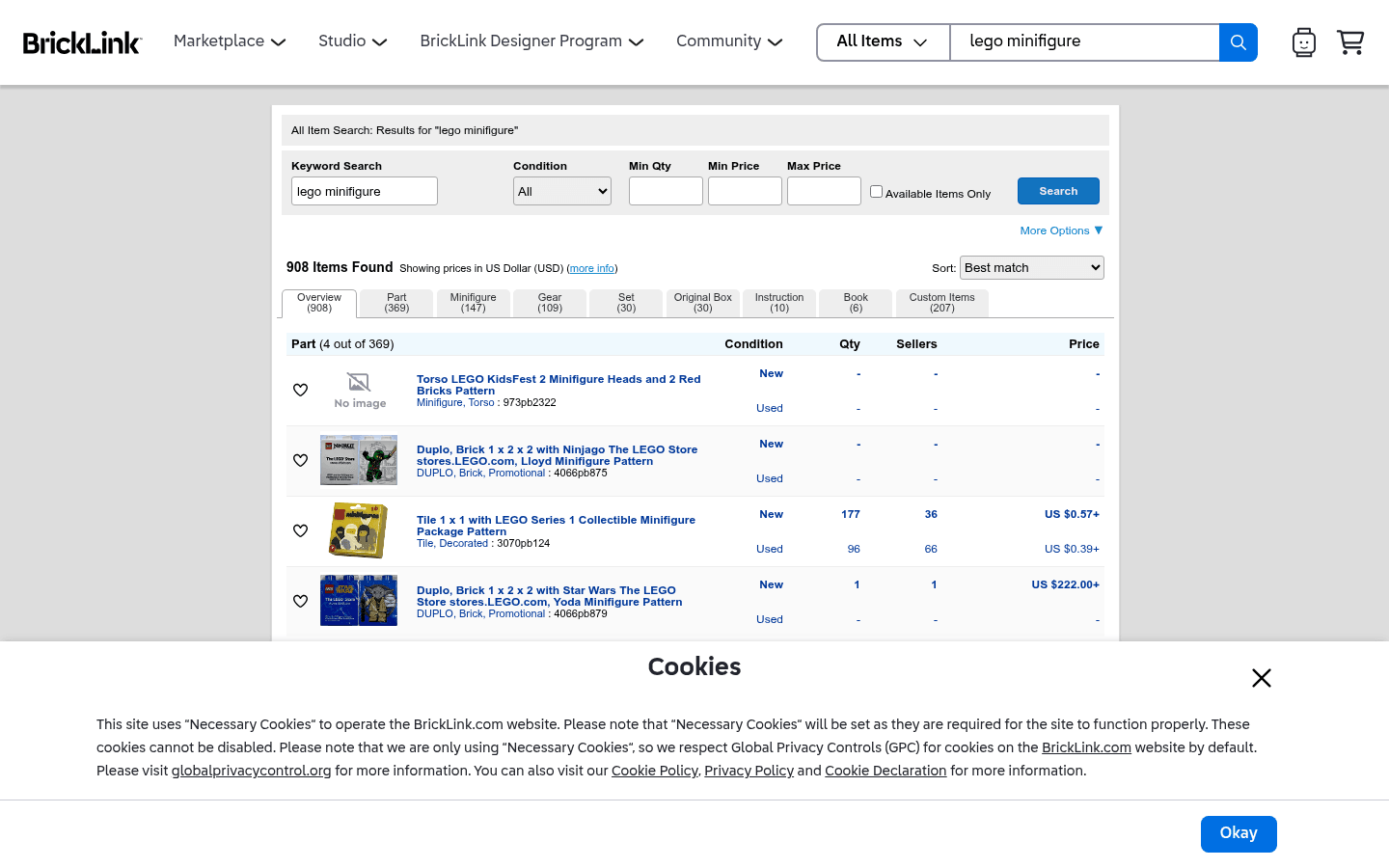
Before choosing where to sell, it helps to see the difference between a BrickLink catalog search, eBay marketplace listings, LEGO.com native catalog, and social or local channels. These screenshots are visual references only. Platform interfaces, fees, and rules can change.
.png)

